 Muser Studio
 🪄Quick Tip:
Set Up M-Vave Chocolate for Looping Video

So! You’ve got a fancy M-Vave Chocolate foot switch and Muser Studio on your iPhone/iPad. Time to make some live loop videos with it? Of course it is! Lets get you up and running.
🎓Step-by-step
- Power on the M-Vave Chocolate. The blue Bluetooth LED should start flashing — that means it’s ready to pair.
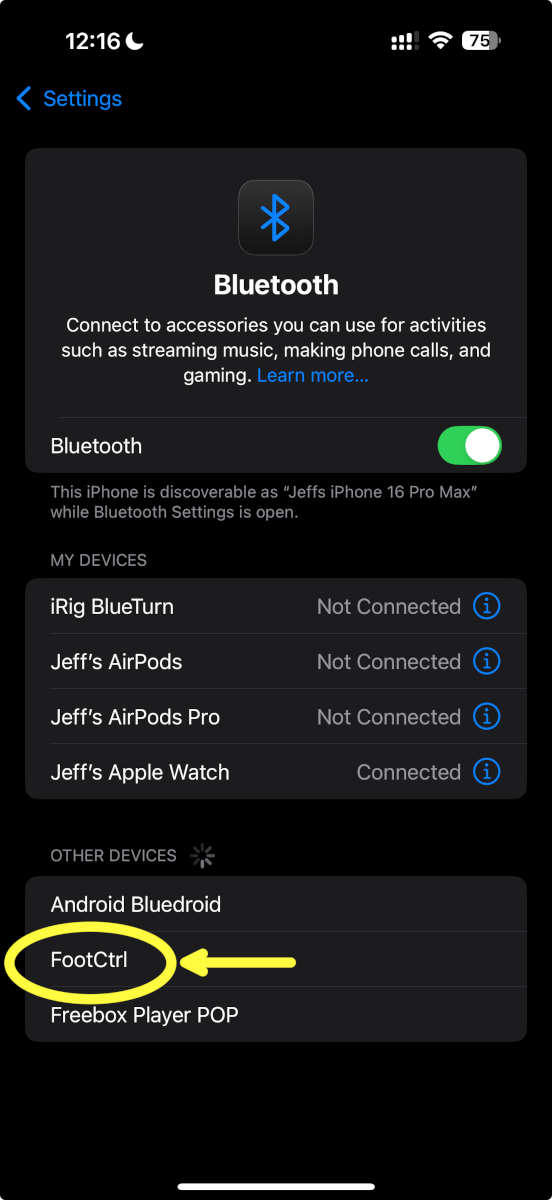
- On your iPhone/iPad, go to Settings > Bluetooth. Look for a device named “FootCtrl” (or something similar), tap it, then tap Pair in the popup.
- Download CubeSuite from the App Store (this is M-Vave’s config app).
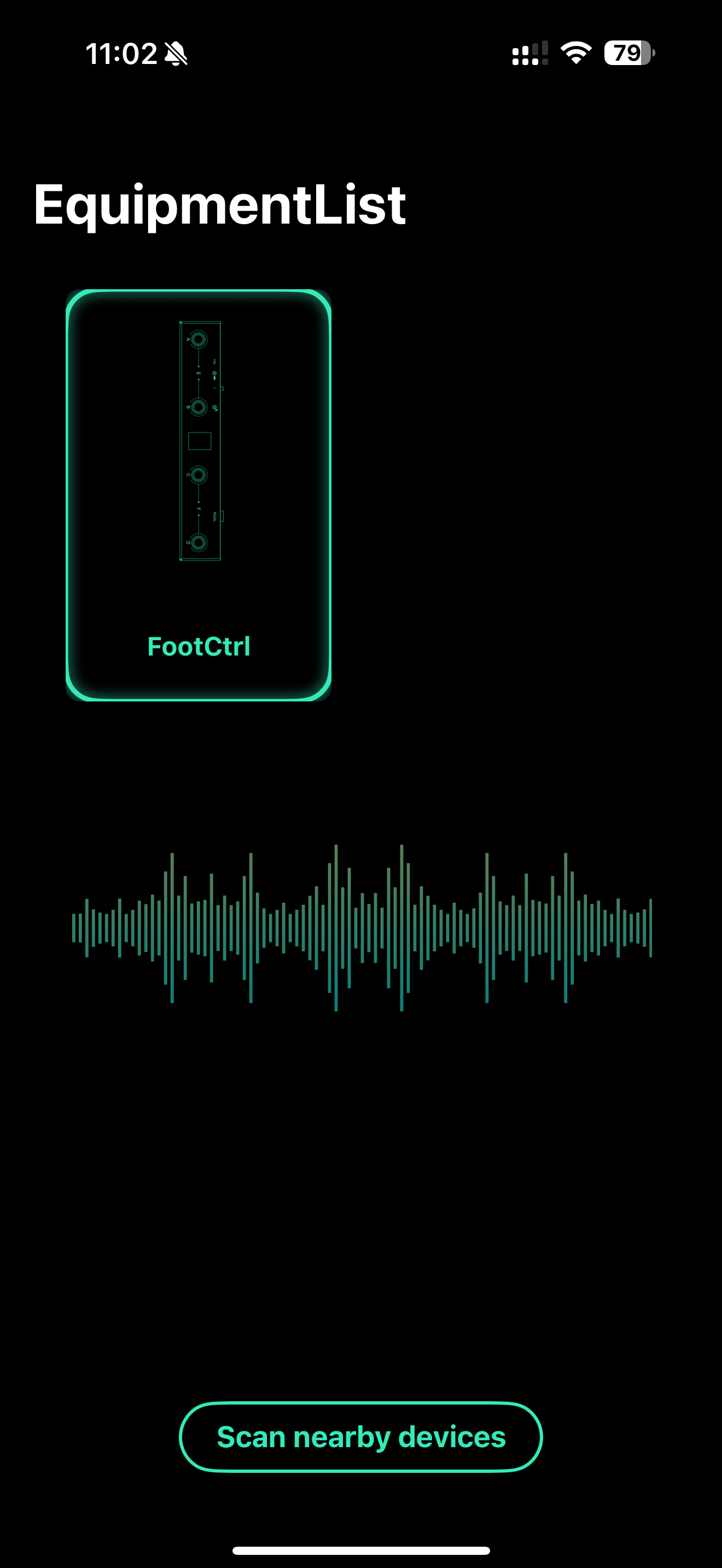
- Open CubeSuite, scan for nearby devices, and select “FootCtrl”.
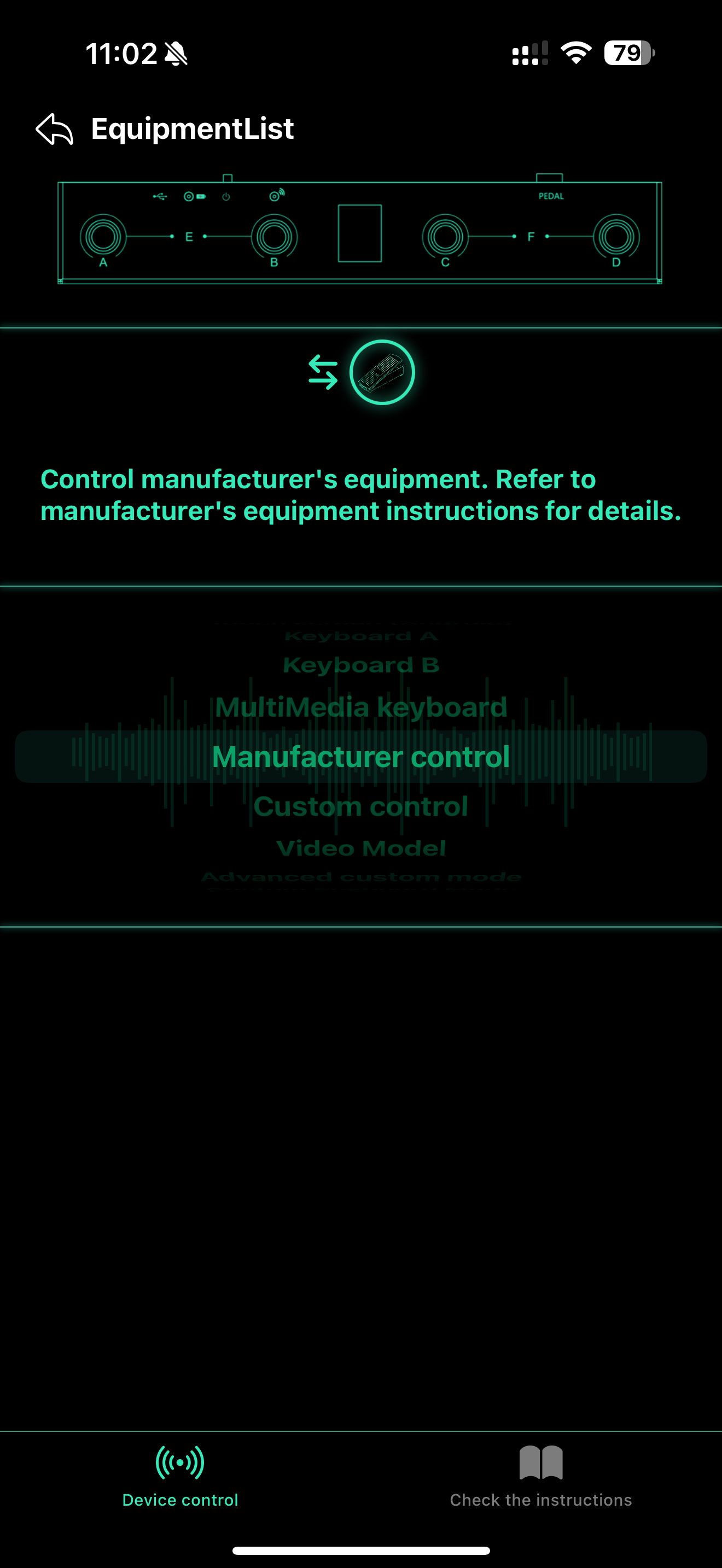
- Scroll through the modes until you find Manufacturer Control mode.
- ✅ You’ll know it worked if the display shows Cu in the centre.

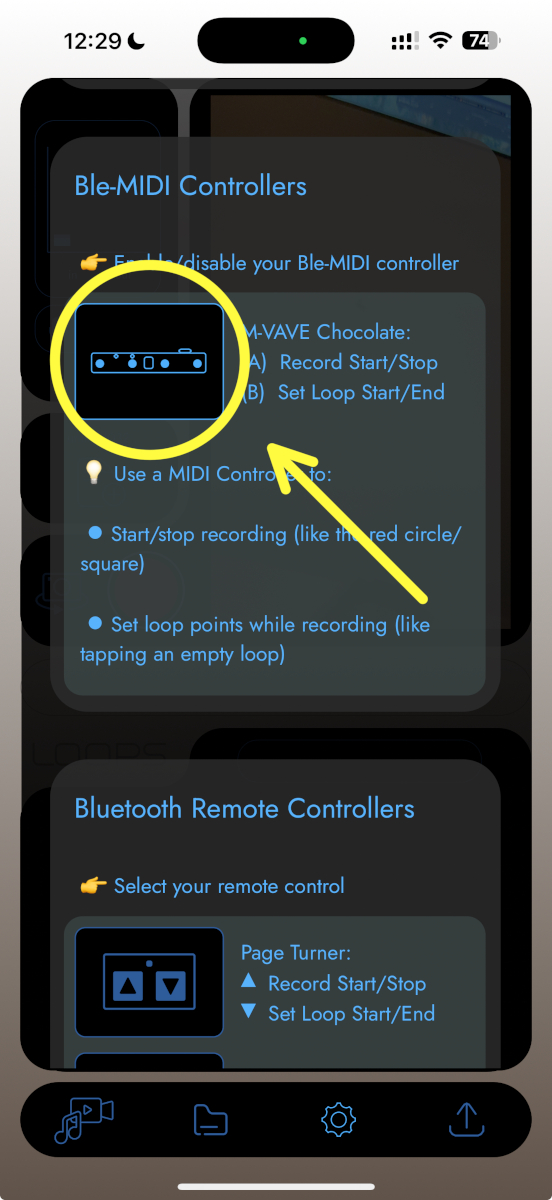
- In Muser Studio, tap the Settings tab (gear icon, 3rd from the left at the bottom).
- Scroll down to Ble-MIDI Controllers and activate the M-Vave Chocolate.
Video walk through
Here’s a Rednote link in case YouTube is not available in your region.
With M-Vave Chocolate paired to your iOS device you can:
With your M-Vave Chocolate now paired and active, here’s what it can do (so far):
| Toggle the metronome (your click track) on and off | Tap “A” |
| Reset the tempo, so the next loop you record sets it | Tap and hold “A” |
| Start and stop the recording session | Double tap “A” |
| Abort and start a fresh project (erases the current take) | Double tap and hold “A” |
| Play and pause a video edit (once you’ve made one) | Tap “A” |
| Mark the beginning and end of loops | Tap “B” |
| Mute and unmute the last loop you defined | Tap and hold “B” |
A tap on “A” does whichever fits where you are: it toggles the metronome during a session, and plays or pauses a video edit once one has been created. The “B” button gestures work while a session is recording. This control scheme needs Muser Studio v1.0.32 or later, see the v1.0.32 release notes for the reasoning behind each gesture.
It’s small, it’s wireless, it’s floor-friendly, and it makes looping videos much smoother.
✅ Why this Tip on setting up M-Vave Chocolate for Looping Video matters
- Keep your hands on the instrument instead of racing too and from the iPhone/iPad to play in time.
- The device is both inexpensive and convenient.
- Marking loops and starting over when you make mistakes is more fluid without tedious reaching and fiddling
Thanks for checking out this Quick Tip on BleMIDI controlled video looping. More to come, stay tuned.
No comments yet - be the first!